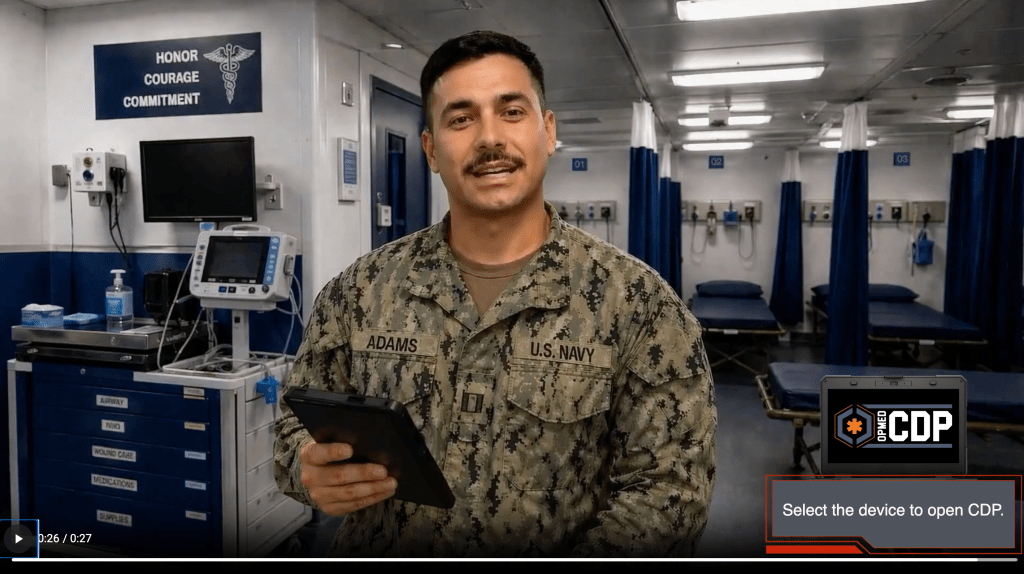
Modules include brief narrator videos that introduce upcoming topics and connect CDP functionality to realistic situations military healthcare practitioners may encounter. At the end of the video, learners select the OpMed CDP icon on a simulated laptop to enter the platform and begin applying what they’ve learned.
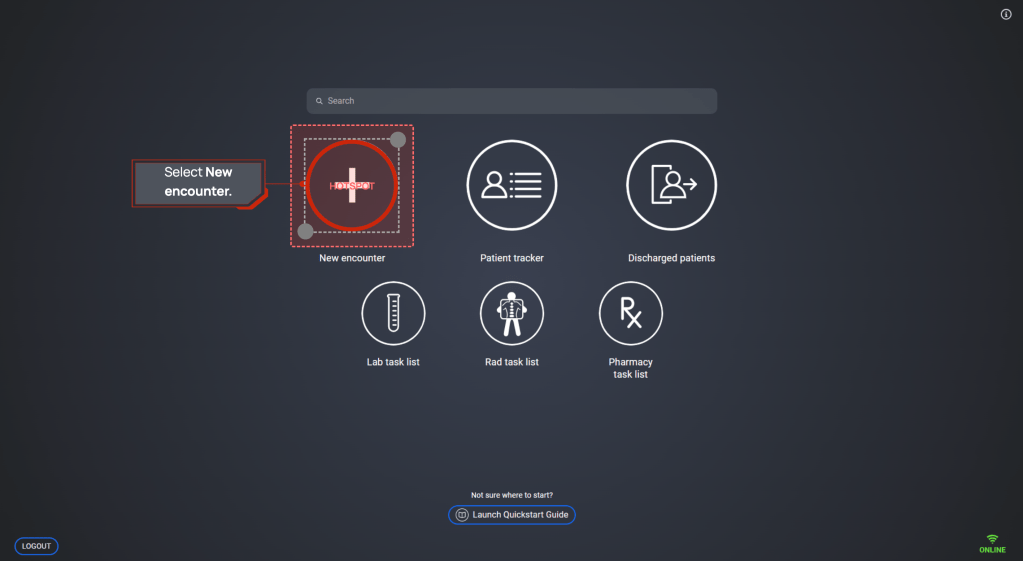
The training simulates the CDP experience using screens that mirror the actual software interface. Learners follow guided prompts and select designated hotspots to progress through realistic software tasks; here, a light-red dotted outline and red border identify the area the learner should select.
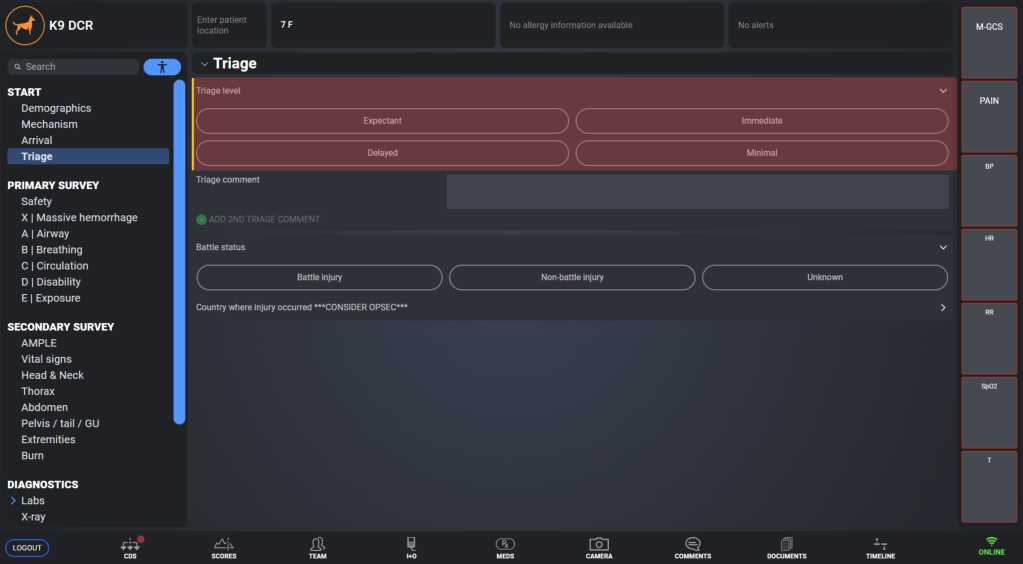
Visual highlights are used throughout the training to direct learners’ attention to the specific interface elements referenced by the narrator. Highlights appear and disappear as needed within a screen, helping learners focus on relevant information as they progress through each task.
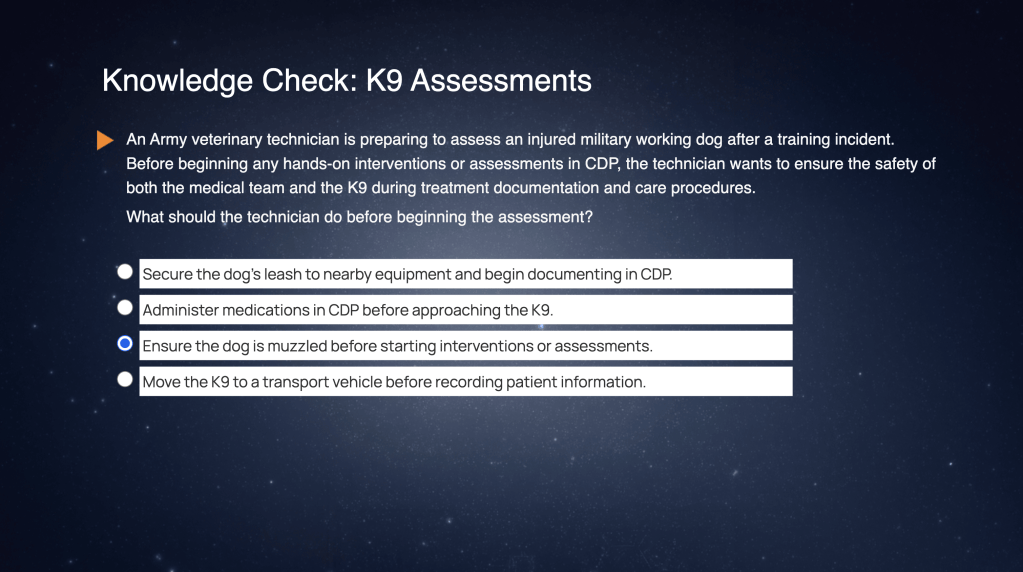
Knowledge checks use brief, realistic scenarios to help learners apply CDP concepts in context rather than relying on simple recall. Feedback is provided for both correct and incorrect responses to reinforce understanding and clarify key concepts.
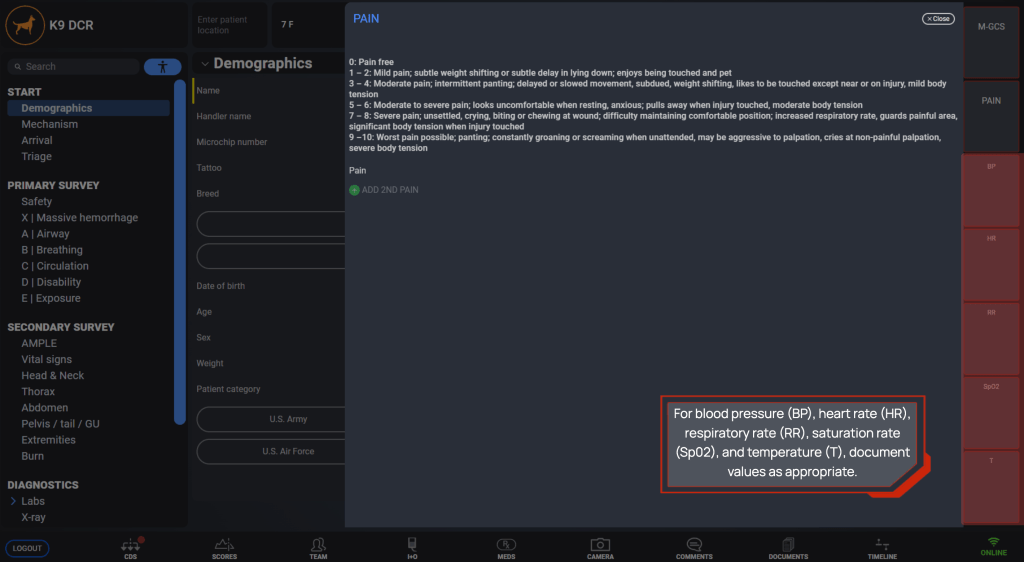
Callout boxes reinforce important ideas, tips, or guidance as the narrator introduces them. They appear consistently in designated areas of the screen, such as the upper left or lower right, helping learners know where to look for emphasized information without adding unnecessary visual distraction.
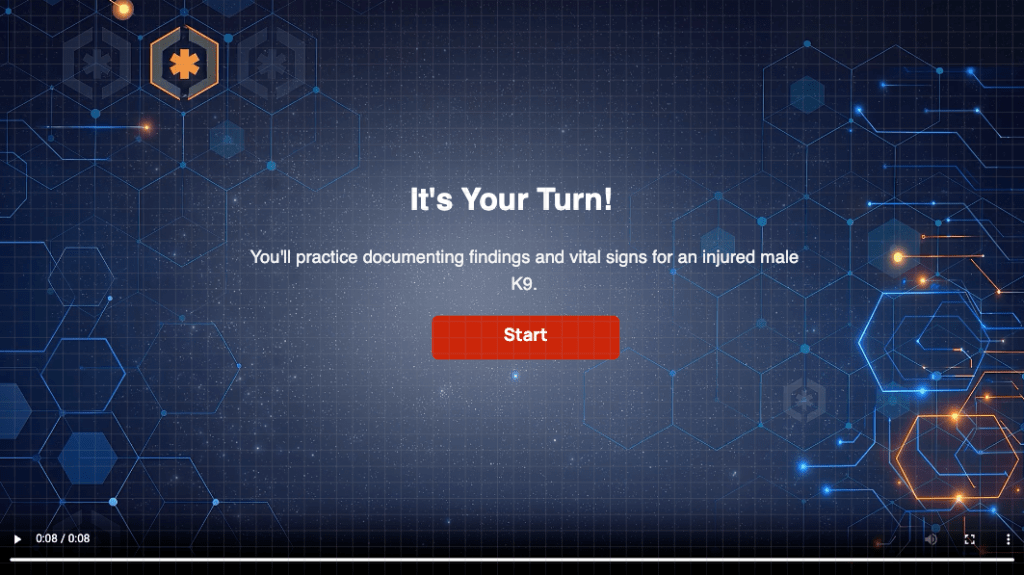
Each module concludes with a practical “Try Me” exercise in which learners complete a task within the software simulation. Learners can reference collapsible on-screen patient notes and receive limited narrator guidance, but must identify the correct actions independently; incorrect selections trigger hints that redirect them without immediately providing the answer.
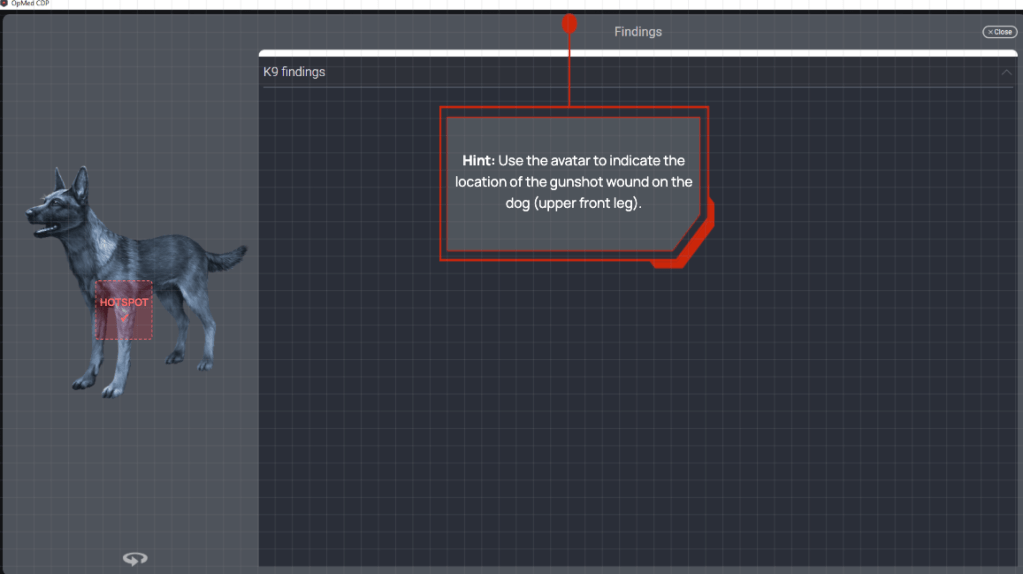
This Try Me screen asks learners to select the appropriate area of the dog’s body to continue the task. The hotspot is invisible during the exercise; if the learner selects an incorrect area, a hint appears at the top of the screen to provide additional guidance.
 Jane Nguyen